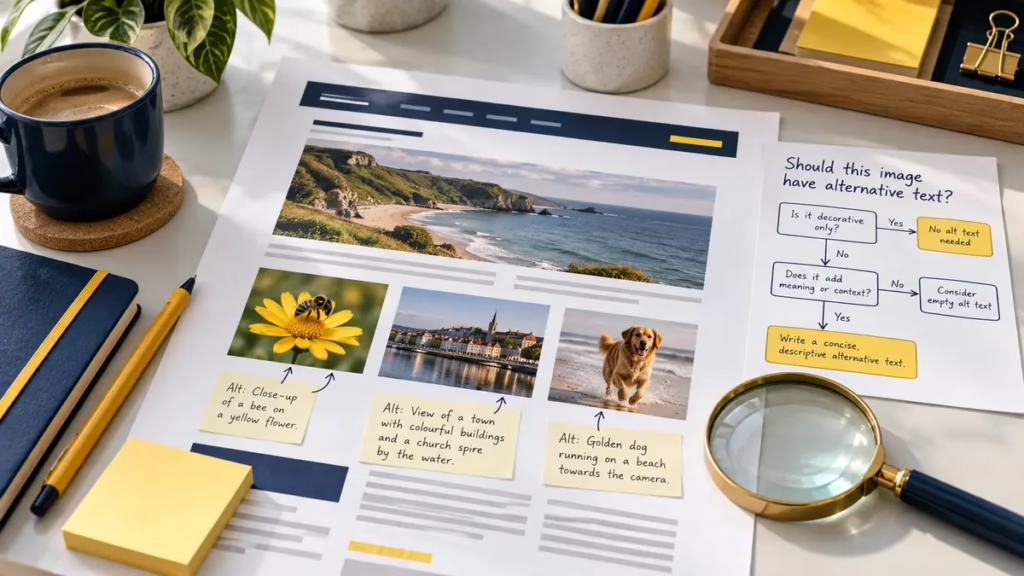

Alternative text is useful when it conveys the information or purpose that a person would otherwise get from an image. The right wording depends on why the image appears on that particular page, not simply on what the image contains.
Quick answer: Decide what the image contributes in its current context. Describe essential information or function, use an empty
altattribute for a genuinely decorative image and provide a longer visible explanation when a chart or diagram cannot be summarised in one sentence.
Start with the image’s purpose
Before describing an image, ask what a reader needs to understand or do because it is there. The same photograph may need different alternative text in different contexts.
A photograph of a crowded railway platform might support:
- a travel article, where the location and atmosphere matter;
- a report about passenger numbers, where the crowd is the important detail; or
- a decorative banner, where the image adds mood but no new information.
The W3C alternative text decision tree (opens in a new tab) begins with this question of purpose. It is more reliable than applying one fixed description rule to every image.
Choose the right treatment for the image
Image type | What the alternative should communicate | Typical treatment |
|---|---|---|
Informative | The essential information the image adds | Concise alternative text |
Functional | The action or destination | Name the control’s purpose |
Decorative | Nothing that is needed to understand the page | Empty alt="" |
Complex | The image type and main point | Short alternative text plus a visible detailed equivalent |
Informative images
An informative image adds meaning that is not already available in nearby text. Its alternative text should communicate the essential information, not every visible detail.
For a photograph used in an article about step-free transport, useful alternative text might be:
Passenger using the level boarding area between a train and platform.
Details such as clothing colour, weather or background signs can be left out unless they support the point of the page.
Functional images
A functional image acts as a link, button or control. Describe the action or destination rather than the image itself.
For example, a magnifying-glass icon used as the only content of a search button needs an accessible name such as “Search”. Calling it “magnifying glass” describes its appearance but not what the control does.
If visible text already labels the control, avoid repeating the same wording through the image. The complete control should have one clear accessible name.
Decorative images
A decorative image adds atmosphere, visual separation or repetition without contributing information. Use an empty alternative text attribute:
<img src="yellow-shape.webp" alt="">
The empty value tells assistive technology to ignore the image. Omitting the alt attribute is not the same thing. A screen reader may announce the filename instead, which adds noise without helping the reader.
Complex images
Charts, diagrams and infographics often need more than a short phrase. Use brief alternative text to identify the image and its main point, then provide the full information in visible page content, a data table or a linked long description.
For a line chart, the short alternative text might say:
Line chart showing support requests falling steadily from January to June.
The surrounding text or table should provide the values and any detail needed to interpret them. The W3C guidance on complex images (opens in a new tab) explains several ways to supply that fuller equivalent.
Write for meaning, not keywords
Useful alternative text is concise because it focuses on purpose. It does not need to begin with “image of” or “picture of” in most cases, because assistive technology already identifies an image.
Avoid:
- lists of search keywords;
- filenames used as descriptions;
- subjective claims that the image does not support;
- repeating a caption word for word; and
- describing details that do not affect understanding.
Search visibility is not a reason to force keywords into alternative text. A description written for the page’s reader is usually clearer for everyone.
Do not duplicate nearby content
If a caption or adjacent paragraph already provides the complete information, the image may need shorter alternative text or an empty value. The aim is to preserve meaning without making a screen reader user hear the same sentence twice.
Logos are a common exception. When a logo identifies an organisation, its alternative text should normally contain the organisation’s name. Extra words such as “logo” are rarely necessary unless the distinction matters in context.
Use a repeatable editorial check
- Identify the purpose. What does the image add to this page?
- Check nearby content. Is the same information already available in text?
- Choose the image type. Informative, functional, decorative or complex.
- Write the shortest complete alternative. Include the information or action that matters.
- Test it in context. Read the page without looking at the image. Does the text preserve its purpose?
The website accessibility audit checklist includes images alongside keyboard access, headings, contrast and forms.
Check the rendered page
Content management systems can change image markup, and an editor preview may not show exactly what assistive technology receives. Inspect the published markup or use an accessibility testing tool to confirm that:
- every meaningful
imgelement has an appropriatealtvalue; - decorative images use
alt=""; - linked images describe the destination or action;
- complex images have a fuller text equivalent; and
- the description still makes sense beside the final heading, caption and body copy.
The W3C Images Tutorial (opens in a new tab) connects these decisions to WCAG 2.2 Success Criterion 1.1.1 on non-text content.
Next step
Choose one image on an important page and test its description against the image’s purpose. Then use the Inclusive Web Design guide to review the surrounding content and interface.